
5 Proven Ways to Fix IPTV Buffering & Freezing Permanently
There is nothing worse than sitting down to watch an important live sports event, only for your screen to freeze right before a crucial goal. If you are constantly wondering how to fix IPTV buffering, this guide is for you.
Table of Contents
Why Does IPTV Buffer in the First Place?
Unlike standard cable TV, which relies on satellites or underground coaxial lines, IPTV delivers video packets over the open internet. Any slight disruption—from your router, your ISP, or the streaming application itself—can cause playback to catch up, resulting in that dreaded spinning wheel.
Quick Diagnostic Check
Are all channels buffering, or just one specific 4K live sports channel? If it's just one channel, the issue is on your IPTV provider's side. If it's every channel (or specifically during peak evening hours), the issue is likely your local network.
Solution 1: Use an Ethernet Cable
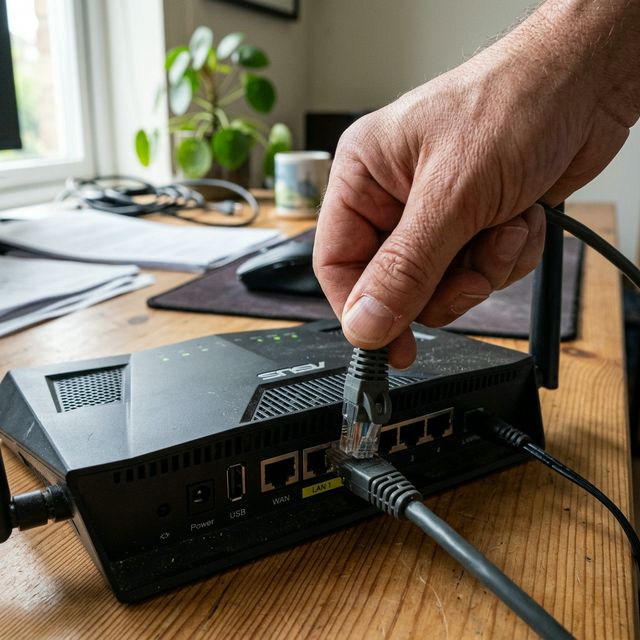
This is the golden rule of IPTV. No matter how powerful your router is, Wi-Fi is susceptible to interference from other devices, walls, and microwaves. By connecting your Smart TV or Android Box directly to your router using an Ethernet cable (Cat 5e or Cat 6), you eliminate wireless interference.
Solution 2: Restart Your Router and App
Often referred to as power-cycling, this simple step fixes 90% of connectivity issues:
- Unplug your router from the power outlet for a full 60 seconds.
- Plug it back in and wait for the lights to stabilize.
- Force close your IPTV application.
- Relaunch the app and attempt to play a channel.
Solution 3: Invest in a Player with Anti-Freeze Tech
Not all media players are built the same. Basic apps like general VLC or outdated M3U players struggle to handle adaptive bitrates. ABC Player IPTV uses proprietary Anti-Freeze and buffer optimization technology. The player dynamically caches upcoming video packets, meaning that if your internet speed drops for 2 seconds, the video won't freeze because the player has already buffered those 2 seconds in advance.
Solution 4: Change Your VPN Server
Many users utilize a VPN to bypass ISP throttling. While this is an excellent strategy, connecting to a VPN server that is too far away geographically will increase your latency (ping). If you are in London, don't connect to a VPN server in Australia. Connect to a server in your own city to maintain the fastest download speeds.
Solution 5: Clear Your Device Cache
Especially on Firesticks and Android TV devices, cache build-up can slow down the operating system's RAM, causing the video player to lag. Go to Settings > Applications > Manage Installed Applications > Clear Cache.
Still Facing Issues?
Our 24/7 technical support team is ready to analyze your network and provide custom solutions.